Best AI Presentation Makers in 2026
· updated
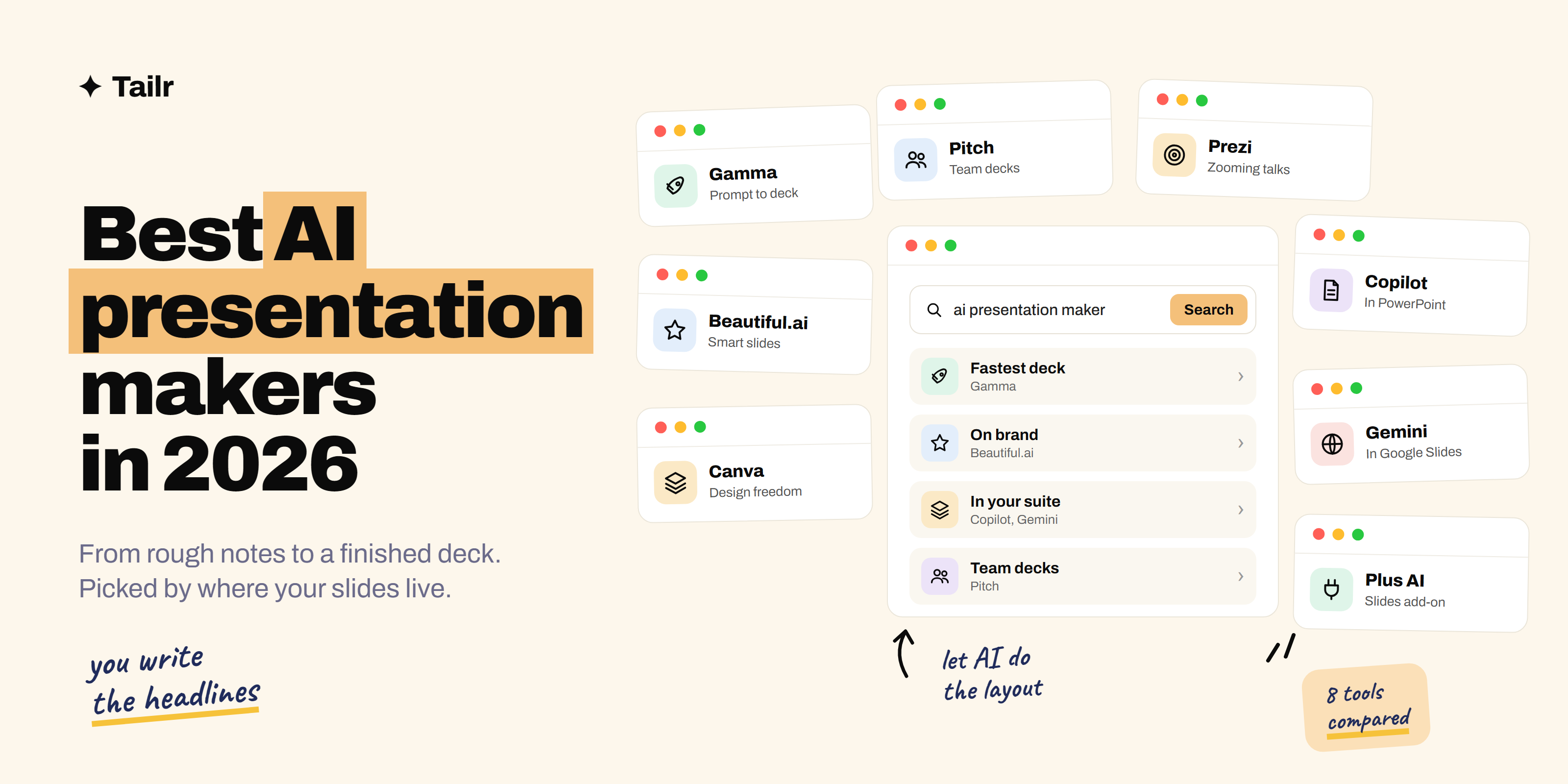
Building a deck from a blank slide is slow. You fight with layouts, nudge text boxes and lose an hour before you’ve said anything. AI presentation makers flip that: you give them a prompt, a document or your rough notes, and they hand you a structured, designed deck you can edit. The question in 2026 isn’t whether to use one, it’s which one fits the way you already work.
The short answer: the best AI presentation makers in 2026 are:
- Gamma: the best all-rounder, turning a prompt or document into a clean, editable deck.
- Beautiful.ai: smart templates that keep every slide on brand as you edit.
- Canva: the most design flexibility, with AI drafting built into a tool you may already use.
- Copilot in PowerPoint: builds decks inside PowerPoint for Microsoft 365 users.
- Gemini in Google Slides: generates slides and images inside Google Slides.
- Plus AI: an add-on that drafts and edits decks inside Google Slides and PowerPoint.
- Pitch: collaborative decks for startups and teams who present together.
- Prezi: non-linear, zooming presentations with AI to draft the outline.
If you just want a good deck fast, start with Gamma. If your company has standardized on Microsoft or Google, use the AI built into that suite first.
What to look for in an AI presentation maker
Every tool on this list can make a deck from a prompt. The differences show up after the first draft:
- Where the deck lives. If your team shares files in PowerPoint or Google Slides, a tool that exports cleanly (or works inside those apps) saves you a lot of reformatting.
- How editable the result is. Some tools generate rigid layouts that break when you add a line. Others reflow the slide as you type.
- What you can feed it. The best results come from your own material: a doc, a PDF, a set of notes or a URL. A one-line prompt gives you a generic deck.
- Brand control. If you present for a company, you need its fonts, colors and logo applied without fixing every slide by hand.
- Charts and data. Many tools are good at text slides and weak at charts. If your deck is numbers-heavy, test that first.
1. Gamma
Website: gamma.app
Gamma is the tool most people mean when they say “AI presentation maker.” You paste a prompt, notes or a full document, pick a theme, and it builds a deck of card-style slides with headings, layouts and images. It’s fast, the defaults look modern, and editing works like a document: you type, and the layout adjusts.
Gamma also makes simple web pages and documents from the same editor, and you can export decks to PowerPoint, Google Slides or PDF when you need to hand them off.
Why use it:
- The fastest way from rough notes to a deck that looks finished
- Import a document and it turns it into slides for you
- Exports to PowerPoint and Google Slides
Best for: anyone who needs a good-looking deck quickly and doesn’t want to touch layout tools.
2. Beautiful.ai
Website: beautiful.ai
Beautiful.ai has been around longer than most AI deck tools, and its core idea is “smart slides”: layouts that rearrange themselves as you add or remove content, so spacing and alignment stay right. Its AI can draft a full deck from a prompt, but the real value is that every edit stays on brand.
Teams can lock in fonts, colors and logos so everyone’s slides match, which matters when several people contribute to the same deck.
Why use it:
- Slides adjust their layout as you edit, so nothing looks off
- Strong brand controls for teams
- Good for decks that get reused and updated often
Best for: teams that make lots of decks and need them to look consistent.
3. Canva
Website: canva.com
Canva’s AI features (Magic Design and Canva’s AI assistant) can draft a presentation from a prompt and fill it with layouts, images and text. Where Canva wins is what happens next: you get its full design editor, a huge library of templates, photos and graphics, and the ability to make matching social posts, handouts or videos from the same content.
The trade-off is that Canva gives you so much freedom that it’s easy to spend an hour tweaking. For a quick, clean deck, Gamma is faster.
Why use it:
- The most design freedom on this list
- Templates and assets for almost any topic
- Easy to reuse your slides in other formats
Best for: people who care about visual design and already use Canva.
4. Copilot in PowerPoint
Website: microsoft.com/microsoft-365/copilot
If your company runs on Microsoft 365, Copilot is built into PowerPoint. You can ask it to create a deck from a prompt or from a Word document, add slides, summarize a long deck or rewrite slide text. Because it works inside PowerPoint, the result uses your company’s templates and stays in the file format everyone already shares.
The designs are plainer than Gamma’s, but there’s no exporting or reformatting step.
Why use it:
- Works inside PowerPoint with your existing templates
- Turns a Word document into slides
- No new tool to get approved at work
Best for: Microsoft 365 users who need decks that stay in PowerPoint.
5. Gemini in Google Slides
Website: workspace.google.com
Google’s Gemini is built into Google Slides for Workspace users. It can generate new slides from a prompt, create images, rewrite text and pull in information from your Drive files. It’s the natural choice if your team already collaborates in Google Slides and you want AI help without leaving the file.
Why use it:
- Works inside Google Slides, so sharing and comments stay the same
- Generates images and slides from a prompt
- Can draw on documents in your Drive
Best for: teams that live in Google Workspace.
6. Plus AI
Website: plusdocs.com
Plus AI is an add-on for Google Slides and PowerPoint. Instead of making you switch tools, it generates a deck or individual slides inside the app you already use, and it can rewrite, remix and restyle existing slides. That makes it a good middle ground: better-designed output than the built-in assistants, without leaving your usual editor.
Why use it:
- Works inside both Google Slides and PowerPoint
- Edits and restyles slides you already have
- Output stays fully editable as normal slides
Best for: people who want stronger AI drafting but need to stay in Slides or PowerPoint.
7. Pitch
Website: pitch.com
Pitch is a presentation tool built for teams, with real-time collaboration, comments, reusable templates and analytics on who viewed a shared deck. Its AI can generate a first draft from a prompt, and the polished templates make it popular with startups for fundraising and sales decks.
Why use it:
- Built for several people working on the same deck
- See who opened a shared deck and how far they got
- Clean templates for pitch and sales decks
Best for: startups and teams that present and share decks together.
8. Prezi
Website: prezi.com
Prezi is known for zooming, non-linear presentations: instead of moving slide to slide, you move around a single canvas. Its AI can turn a prompt or document into a Prezi with a structure and visuals already in place. It’s a good choice when you want a talk to feel different from the usual deck, though the motion can be distracting if you overdo it.
Why use it:
- Non-linear format that stands out from standard slides
- AI drafts the structure for you
- Works well for talks and teaching
Best for: speakers and teachers who want a more memorable format.
AI presentation makers compared
| Tool | Works in | Strongest at | Best for |
|---|---|---|---|
| Gamma | Its own editor, exports to PPT and Slides | Fast, clean first drafts | Most people |
| Beautiful.ai | Its own editor | Layouts that stay tidy and on brand | Teams |
| Canva | Its own editor | Design freedom and assets | Visual decks |
| Copilot in PowerPoint | PowerPoint | Company templates, Word to slides | Microsoft 365 users |
| Gemini in Google Slides | Google Slides | Images, Drive content | Google Workspace teams |
| Plus AI | Google Slides, PowerPoint | Editing existing decks | Staying in your usual app |
| Pitch | Its own editor | Collaboration and analytics | Startups |
| Prezi | Its own editor | Zooming, non-linear talks | Speakers and teachers |
How to get a good deck out of any of these tools
The tool matters less than what you give it. A few habits make a big difference:
- Start from your own material. Paste your notes, an outline or the document you’re presenting. A prompt like “make a deck about our Q3 results” gives you filler; your actual numbers give you a deck.
- Write the slide titles yourself. Each title should be the point of the slide, as a sentence: “Signups doubled after we cut the form to one field,” not “Signup results.”
- Cut the words in half. AI drafts are wordy. Most slides need one headline and three short lines at most.
- Replace stock images with real ones. A screenshot of your product or a simple chart of your data is more convincing than a generated picture.
- Check every number. AI tools can invent or round figures. Nothing loses a room faster than a wrong number on slide two.
Presenting in an interview
Many interviews now include a presentation: a product case study, a take-home analysis, a sales pitch or a “walk us through a project” deck. AI presentation makers are great for getting the structure and design done fast so you can spend your time on the thinking. Just make sure the story, the numbers and the recommendation are yours, because the follow-up questions will be. Our guide to preparing for PM case study interviews covers how to structure that kind of deck, and the STAR method works well for “tell us about a project” presentations.
Getting to the presentation round starts with the application. Tailr is a Chrome extension that tailors your resume to the job listing you’re viewing, writes a matching cover letter and tracks every application, so you spend less time rewriting and more time preparing for the rounds that matter.
Get to the interview faster
You’d use Gamma so you don’t have to build slides from scratch. Tailr does the same for job applications: open a listing, and it tailors your resume to that role in seconds. Try Tailr and spend your energy on the interview, not the paperwork. For more tools that help with the search itself, see the top AI tools for job search.
Conclusion
The best AI presentation maker in 2026 is the one that fits where your decks already live. Gamma is the fastest way to a clean deck from scratch, Beautiful.ai keeps team decks consistent, and Canva gives you the most design freedom. If your company runs on Microsoft or Google, try Copilot in PowerPoint or Gemini in Google Slides first, and add Plus AI if you want more. Whatever you pick, let the AI handle layout and spend your time on the message.
Frequently asked questions
01What is the best AI presentation maker in 2026?
Gamma is the best all-round pick for most people, because it turns a prompt, a document or a set of notes into a clean, editable deck in about a minute and exports to PowerPoint and Google Slides. If your company already lives in Microsoft 365 or Google Workspace, Copilot in PowerPoint or Gemini in Google Slides is often the easier choice.
02Is there a free AI presentation maker?
Yes. Gamma, Canva and Plus AI all have free plans you can use to make real decks, with limits on credits, exports or branding. Free plans change often, so check what your account shows before you start a deck you need by a deadline.
03Can AI make a PowerPoint presentation for me?
Yes. Copilot in PowerPoint builds a deck from a prompt or a Word document right inside PowerPoint, and Gamma, Beautiful.ai and Plus AI can all export to a .pptx file. You'll still want to check every number and rewrite the slide titles in your own words.
04What happened to Tome?
Tome shut down its presentation product in spring 2025, and its founders moved on to a different product. If you used Tome, Gamma is the closest replacement, since it also builds card-style decks from a prompt.
05Can I use an AI presentation maker for a job interview?
Yes, and it's a good use. AI tools are great for a first draft of a case study or take-home presentation, but rewrite the story, the numbers and the recommendation yourself. Interviewers will ask follow-up questions, and you need to own every slide.
06Are AI-generated slides good enough to present without editing?
Rarely. AI tools get the layout and structure right fast, but the text tends to be generic and the images can feel stock. Plan to spend most of your time tightening the headlines, cutting words and swapping in your own charts and screenshots.