Best Resume File Format: Which Extension Should You Use?
· updated
You’ve spent hours on what your resume says. The file extension takes two seconds to choose, and it’s the part that decides whether an applicant tracking system can read any of it. Pick the wrong one and your resume can arrive as a blank record, a jumble of characters, or a file the recruiter can’t open. Here’s which extensions are safe, which to avoid, and how to save and name the file properly.
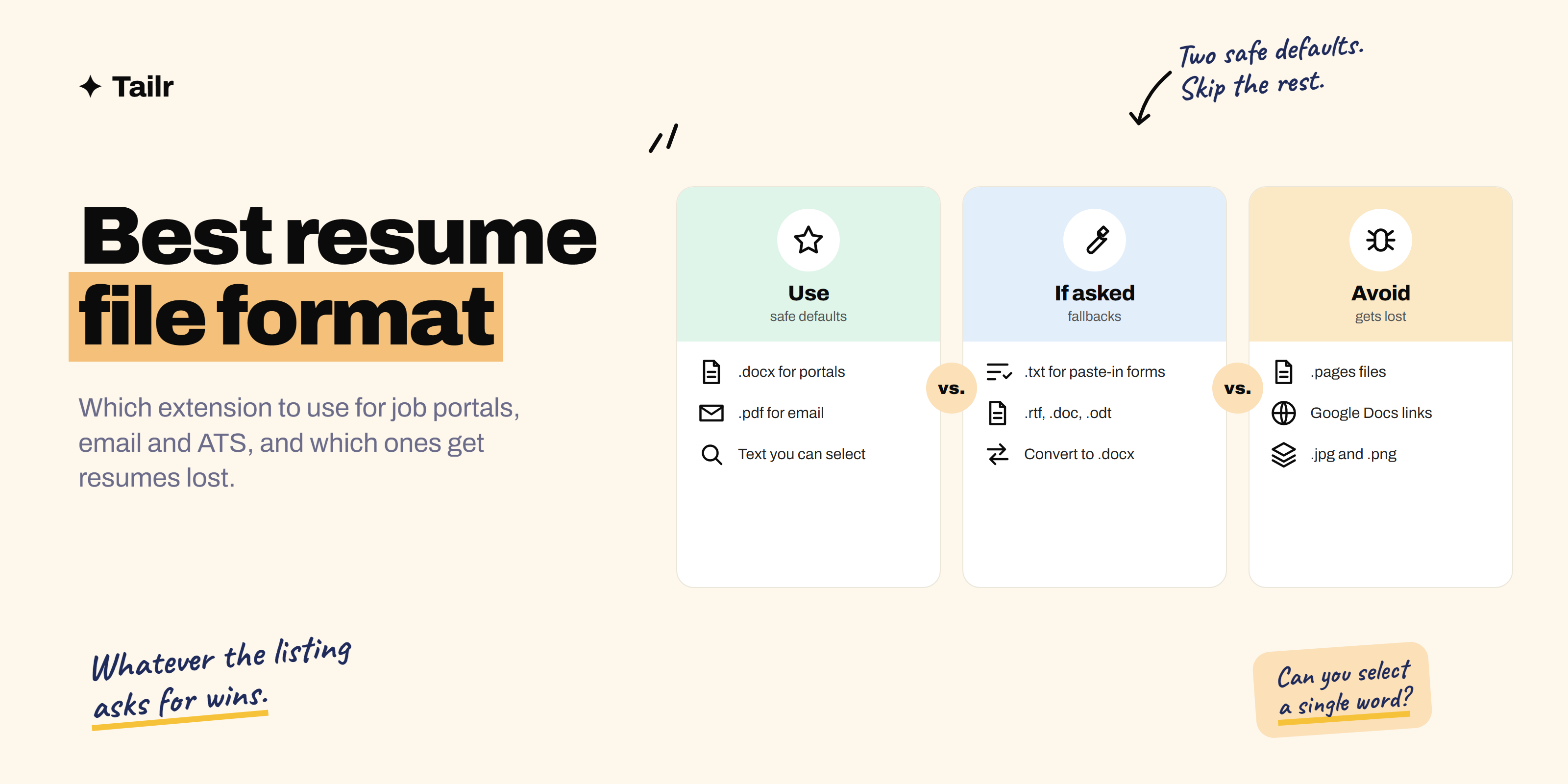
The short answer: use these resume file formats, in this order:
- .docx for job portals and applicant tracking systems.
- .pdf (text-based, not scanned) for emailing a person directly, or when a portal asks for PDF.
- .txt only when a form asks for plain text or you’re pasting into a text box.
Avoid .doc, .rtf and .odt unless asked, and never use .pages, Google Docs links, or image files like .jpg and .png. Whatever the listing asks for always wins.
Why the file format matters
When you apply through a job portal, your resume usually goes into an applicant tracking system (ATS). The ATS pulls text out of your file and sorts it into fields: name, contact details, job titles, dates, skills. Recruiters then search those fields.
If the system can’t extract the text cleanly, your experience might land in the wrong field or not land at all. A recruiter searching for “SQL” won’t find you, even if SQL is all over your resume. The file format is one of the biggest factors in how cleanly that extraction works. We go deeper on the two main options in why .docx beats PDF for resume uploads.
Every resume file extension, compared
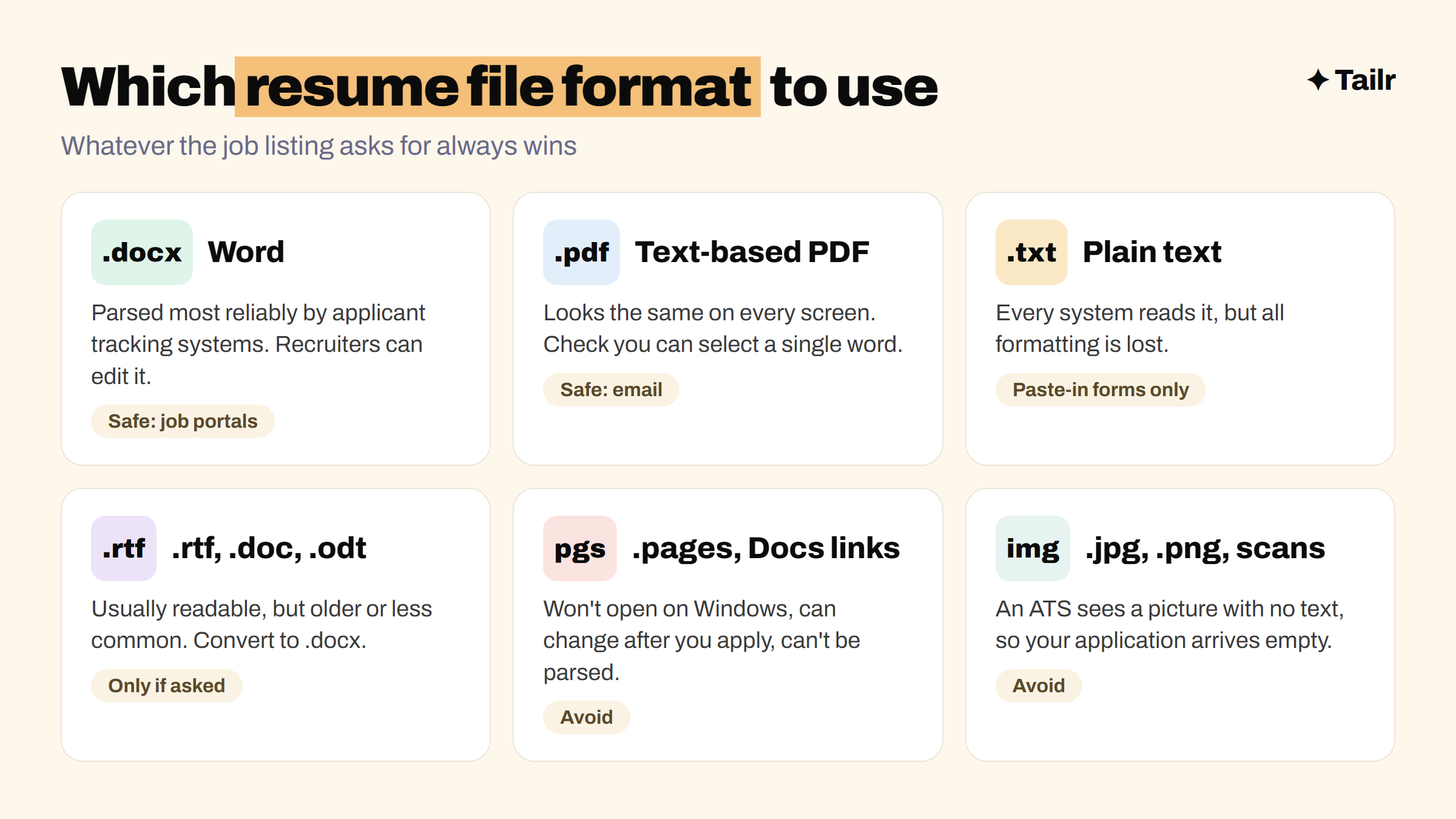
.docx (Microsoft Word)
The safest default for online applications. Word files store text in a structured way that parsers read very reliably, including older systems. Recruiters and agencies can also make small edits, such as removing your contact details before sending you to a client.
Use it for: job portals, ATS uploads, recruitment agencies.
.pdf (Portable Document Format)
A PDF looks identical on every device, which makes it the best choice when a human opens your resume first, such as an email to a hiring manager. Most modern ATS read text-based PDFs well. The risk is PDFs exported from design tools with text in columns, text boxes or as outlines, which some systems can’t parse.
Check it: open the PDF and try to select a single word. If you can highlight and copy it, the text is real. If clicking selects the whole page, it’s an image, and an ATS can’t read it.
Use it for: email applications, referrals, portals that ask for PDF.
.txt (plain text)
Every system can read plain text, but all formatting disappears: no bold, no columns, no bullets. It’s rarely the right file to upload. It is useful as a working copy when a form asks you to paste your resume into a box, because pasting from Word or PDF often brings strange characters with it.
Use it for: paste-in forms, and only uploads that specifically ask for it.
.doc (Word 97–2003)
The old binary Word format. It still opens, but it’s larger and some modern parsers handle it less well. There’s no reason to choose it over .docx today.
.rtf (Rich Text Format)
A basic format that keeps simple formatting and opens almost anywhere. It’s a reasonable fallback if a system rejects .docx, which is rare.
.odt (OpenDocument Text)
The default format in LibreOffice. Many ATS accept it, but not all, and some recruiters can’t open it easily. Save as .docx instead: in LibreOffice, choose File, Save As, and pick Word 2007-365 (.docx).
.pages (Apple Pages)
Avoid. Most recruiters use Windows, and Pages files don’t open there without converting. In Pages, use File, Export To, then Word or PDF.
Google Docs links
Don’t send a link instead of a file. Sharing settings go wrong, the document can change after you apply, and an ATS can’t parse a link. Download it from File, Download, as .docx or PDF.
.jpg, .png and other images
Never. An ATS sees an image as a picture with no text in it, so your application arrives empty. The same is true of a PDF made by scanning a printed resume.
Quick comparison table
| Format | ATS reads it reliably | Looks the same everywhere | Recruiter can edit | Verdict |
|---|---|---|---|---|
| .docx | Yes | Mostly | Yes | Best for portals |
| .pdf (text-based) | Usually | Yes | No | Best for email |
| .txt | Yes | No formatting | Yes | Paste-in forms only |
| .rtf | Usually | Mostly | Yes | Fallback |
| .doc | Usually | Mostly | Yes | Use .docx instead |
| .odt | Sometimes | Mostly | Sometimes | Convert to .docx |
| .pages | No | No | No | Avoid |
| .jpg / .png | No | Yes | No | Avoid |
How to save each format correctly
- Word: File, Save As, choose Word Document (.docx).
- Google Docs: File, Download, Microsoft Word (.docx) or PDF Document (.pdf).
- PDF from Word: File, Save As, PDF. Don’t use “Print to PDF” from a browser preview, which sometimes flattens text.
- Canva and design tools: export as “PDF Standard”, then run the select-a-word test above. If the layout uses multiple columns, also keep a simple single-column .docx for portals.
How to name your resume file
Recruiters download hundreds of files a week. Make yours easy to find:
- Good:
Priya-Sharma-Resume.docx,Priya-Sharma-Resume-Data-Analyst.pdf - Bad:
resume.docx,CV_final_FINAL_v3.pdf,Document1.docx
Keep it under about 40 characters, use hyphens or underscores instead of spaces, and leave out dates and version numbers.
Other file details that trip people up
- File size. Many portals cap uploads at 2 to 5 MB. A text resume should be well under 1 MB; if yours is bigger, an embedded photo or font is usually the cause.
- Headers and footers. Some parsers skip them, so don’t put your name or contact details only in the header.
- Tables and text boxes. Fine in a PDF you email, risky in a portal upload. Keep layout simple. Our ATS-friendly resume check covers this in detail.
- Length. The format doesn’t change how long it should be. See how long a resume should be.
Keep one master and export per application
The simplest system: keep one master resume in Word or Google Docs, make a tailored copy for each job, and export it in whatever format the listing asks for. Tailr speeds this up: it’s a Chrome extension that tailors your resume to the job listing you’re viewing, hands back the same .docx with your formatting intact, writes a matching cover letter and keeps track of which version went to which company.
Try TailrConclusion
Use .docx for job portals, a text-based PDF for email, and plain text only for paste-in forms. Skip .pages, Google Docs links and image files entirely, check that any PDF has real selectable text, and give the file a clear name with your own name in it. It takes a minute to get right, and it makes sure every hour you spent on the content actually gets read.
Frequently asked questions
01What is the best file format for a resume?
For uploads to job portals and applicant tracking systems, .docx is the safest choice. For emailing a resume directly to a recruiter or hiring manager, a text-based PDF is better because it looks the same on every screen. If a job listing asks for a specific format, always use that one.
02Should I use .doc or .docx for my resume?
Use .docx. The .doc format is the older Word format from before 2007; it still opens, but some modern systems parse it less reliably and it's larger. Every current version of Word, Google Docs and LibreOffice can save as .docx.
03Can I upload my resume as a JPG or PNG?
No. Image files can't be read by applicant tracking systems, so your resume would arrive as a blank record with no searchable text. Recruiters also can't copy details from it. Use .docx or a text-based PDF instead.
04Is a Google Docs resume OK to send?
Don't send a Google Docs link as your resume. Links can have the wrong sharing settings, can change after you apply, and won't be parsed by an ATS. Download it as .docx or PDF from File, then Download, and upload that file.
05Can I send my resume as a Pages file?
Avoid it. Most recruiters use Windows, and .pages files don't open on Windows without converting them. Export from Pages using File, then Export To, then Word or PDF before applying.
06How should I name my resume file?
Use your name, the word resume and optionally the role, separated by hyphens or underscores, such as Priya-Sharma-Resume-Data-Analyst.docx. Avoid names like resume_final_v3.docx; recruiters download hundreds of files, and a clear name helps yours get found and looks more professional.