Best Tools for UI/UX Designers in 2026
· updated
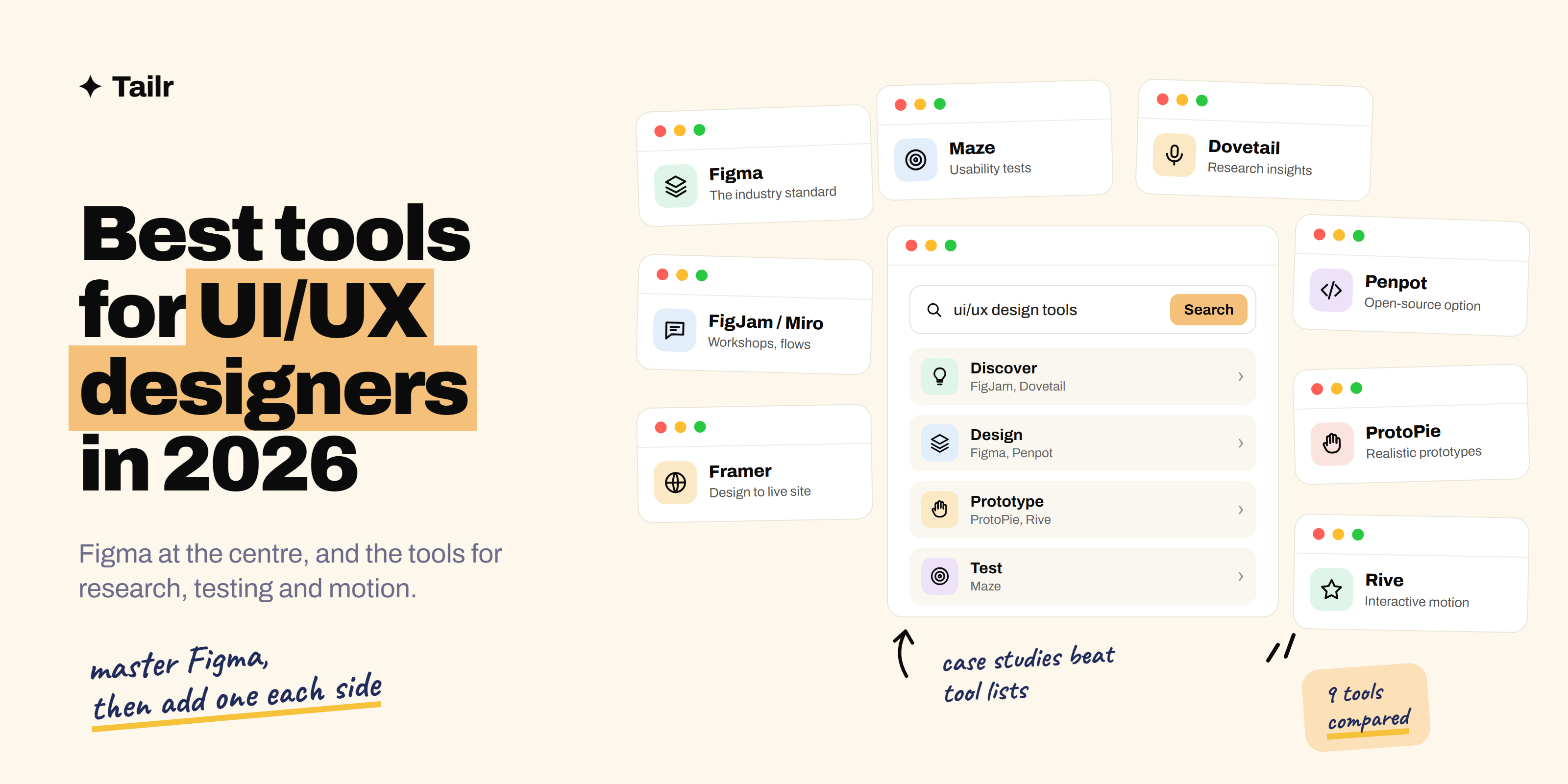
UI/UX design used to mean juggling Sketch, InVision, Zeplin and a whiteboard app. In 2026 most of that has folded into one tool, and the interesting choices are around it: how you research, how you test, how you prototype things a static screen can’t show, and how you get designs into code. This guide covers the best tools for each stage of the design process and what each one is genuinely best at.
The short answer: the best tools for UI/UX designers in 2026 are:
- Figma: the standard for interface design, prototyping and handoff.
- FigJam and Miro: whiteboards for workshops, flows and research synthesis.
- Framer: turning designs into live, interactive websites.
- Penpot: the free, open-source Figma alternative.
- Sketch: native Mac design app.
- ProtoPie: advanced, realistic prototypes.
- Rive: interactive animations that ship in the product.
- Maze: unmoderated usability testing.
- Dovetail: storing and sharing research insights.
Learn Figma first. Add Maze or Dovetail if you lean toward UX research, and Framer, ProtoPie or Rive if you lean toward interaction design.
What to look for in a design tool
A design tool earns its place by covering a stage of the process well and fitting into the rest of the team’s work:
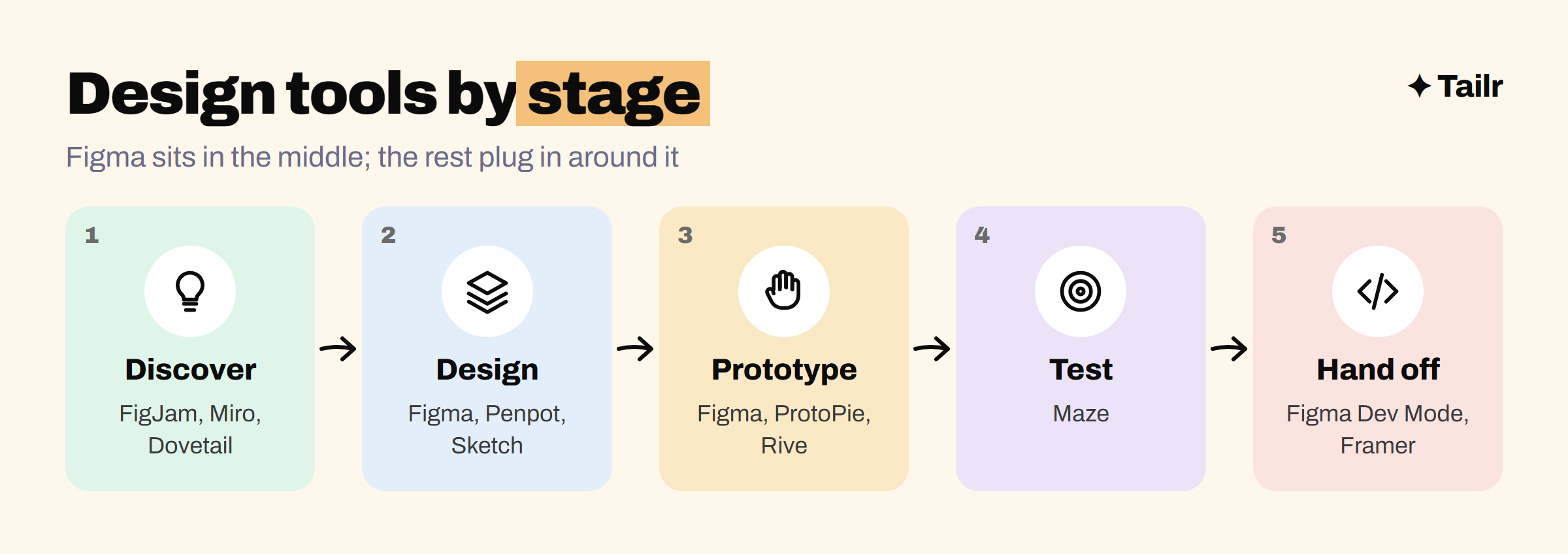
- Discover: interviews, research notes, whiteboard workshops.
- Design: wireframes, high-fidelity screens, components and design systems.
- Prototype: clickable flows, realistic interactions, animation.
- Test: putting prototypes in front of users and measuring what happens.
- Hand off: giving developers specs, assets and code they can use.
When comparing two tools for the same stage, check whether they work with Figma files (most teams’ source of truth), whether your team can collaborate in real time, and whether the skill shows up in the job listings you’re targeting.
1. Figma
Website: figma.com
Figma is the default tool for UI/UX design. You design screens in the browser or desktop app, build reusable components and variables for a design system, wire up clickable prototypes, and collaborate with the whole team in the same file in real time. Developers inspect designs and copy specs through Dev Mode, so the handoff happens in the same place.
Figma has also added Figma Make, which turns a prompt or an existing design into a working prototype, and Figma Sites for publishing websites. These are useful for quick explorations, but the core skill employers want is still solid interface design: auto layout, components, variants and variables. The free Starter plan is enough to learn and build portfolio projects.
Why use it:
- The industry standard, asked for in most design job listings.
- Real-time collaboration with designers, PMs and developers.
- Design systems, prototyping and handoff in one tool.
Best for: every UI/UX designer. Learn it first.
2. FigJam and Miro
Website: figma.com/figjam and miro.com
Before screens come sticky notes. FigJam (Figma’s whiteboard) and Miro are where teams run workshops, map user journeys, sketch flows and sort research findings into themes. FigJam is the natural pick if your team lives in Figma, since you can move content between the two. Miro is the more powerful standalone whiteboard and is common at larger companies, where it’s used well beyond the design team.
Why use it:
- Run remote workshops and design sprints.
- Synthesise interview notes into themes with affinity mapping.
- Map user flows before you design a single screen.
Best for: the discovery stage, research synthesis and cross-team workshops.
3. Framer
Website: framer.com
Framer started as a prototyping tool and is now a website builder that feels like a design tool. You design on a canvas and publish a real, fast, responsive site, with animations and a built-in content system. For product designers, it’s the quickest way to turn a design into something live, and it’s become the most popular way for designers to build their own portfolio. See our guide to the best tools for creating a portfolio for how it compares to Webflow and others.
Why use it:
- Designs become live websites without handing off to a developer.
- Strong animation and interaction tools.
- Free plan for personal projects.
Best for: landing pages, marketing sites and designer portfolios.
4. Penpot
Website: penpot.app
Penpot is the main open-source alternative to Figma. It runs in the browser, it’s free, and you can host it on your own servers, which matters to teams in government, healthcare or anywhere that can’t put files in someone else’s cloud. Its layouts are based on real CSS flexbox and grid, so what you design maps closely to what developers build.
Why use it:
- Free and open source, with self-hosting.
- Layouts that match real CSS, which helps handoff.
- Familiar if you already know Figma.
Best for: teams that need self-hosting or open source, and designers who work closely with front-end code.
5. Sketch
Website: sketch.com
Sketch was the tool that defined modern UI design before Figma. It’s a native Mac app, which some designers prefer for speed and offline work, and it now has real-time collaboration and a web app for sharing and inspecting designs. It’s less common in job listings than Figma, but it still has a loyal user base, particularly at Mac-first agencies and studios.
Why use it:
- Fast, native Mac app that works offline.
- Mature symbols and libraries for design systems.
- Still used at some agencies and long-standing teams.
Best for: Mac users who prefer a native app, and teams already using it.
6. ProtoPie
Website: protopie.io
Figma’s prototypes are great for click-through flows, but some ideas need more: a real text input, a slider that changes a value, logic that depends on what the user typed, or a phone’s camera and sensors. ProtoPie builds prototypes that behave like the real product, without code, and imports your Figma designs to start. It’s popular with automotive, hardware and mobile teams where realistic interaction matters before anything is built.
Why use it:
- Prototypes with variables, conditions and real inputs.
- Uses device sensors and multi-screen interactions.
- Imports directly from Figma.
Best for: interaction designers and anyone testing complex or hardware-connected interactions.
7. Rive
Website: rive.app
Rive is for interactive animation that actually ships in the product: animated icons, onboarding illustrations, buttons that react to hover and press. You design the animation and a state machine that controls it, and developers drop the file into web, iOS, Android or game engines with a small runtime. It’s increasingly the go-to tool for product teams that want motion without a pile of video files.
Why use it:
- Animations that respond to user input, not just play.
- One file runs on web, mobile and games.
- Small files compared to video or GIFs.
Best for: motion and product designers who want animations developers can use directly.
8. Maze
Website: maze.co
Maze runs unmoderated usability tests. (New to prototypes? See wireframe vs prototype first.) You link a Figma prototype, write tasks like “find and change your delivery address”, send a link to testers, and Maze reports where people clicked, how long they took, and where they gave up. It also handles surveys, card sorting and tree testing. It’s a fast way to get evidence for design decisions without scheduling a dozen calls. For bigger decisions on live products, pair it with A/B testing.
Why use it:
- Test Figma prototypes with real users in hours, not weeks.
- Heatmaps, success rates and drop-off data.
- Surveys, card sorts and tree tests in one place.
Best for: validating designs before development, and designers who want data in their case studies.
9. Dovetail
Website: dovetail.com
Research is wasted if nobody can find it six months later. Dovetail is a research repository: upload interview recordings and notes, get transcripts, tag the important moments, group them into themes, and share highlight reels with the team. When a product manager asks “do users actually want this?”, you can answer with clips from real interviews instead of opinions.
Why use it:
- Transcribe, tag and theme interviews in one place.
- Searchable insights the whole company can use.
- Highlight reels that make research persuasive.
Best for: UX researchers and product teams that run regular user interviews.
UI/UX design tools compared
| Tool | Stage | Free option | Best for |
|---|---|---|---|
| Figma | Design, prototype, hand off | Starter plan | Every designer |
| FigJam / Miro | Discover | Free plans | Workshops and synthesis |
| Framer | Design to live site | Free plan | Websites and portfolios |
| Penpot | Design, hand off | Yes, open source | Self-hosting, CSS-minded teams |
| Sketch | Design | Free trial | Mac-native workflows |
| ProtoPie | Prototype | Free plan | Realistic interactions |
| Rive | Prototype, ship animation | Free plan | Interactive motion |
| Maze | Test | Free plan | Unmoderated usability tests |
| Dovetail | Discover | Free plan | Research repository |
How to build a design workflow efficiently
The mistake most designers make is collecting tools instead of finishing projects. A lean workflow is Figma plus one tool on either side of it: one for research (FigJam or Dovetail) and one for testing or prototyping (Maze or ProtoPie). That’s enough to run a full design process and document it as a case study.
To practise, pick an app you use every day that frustrates you, and redesign one flow:
- Interview three people who use it, and sort their notes in FigJam.
- Design the new flow in Figma with proper components and auto layout.
- Test it with five people in Maze and change what didn’t work.
- Write it up as a case study: the problem, what you learned, what you changed and why.
That case study shows a hiring manager more than any list of tools. Designers often work closely with product managers, so the best tools for product managers is worth a look too.
For designers job hunting
Design job listings ask for different things even when the title is the same. A product designer role at a startup might want Figma, Framer and shipping fast; the same title at a larger company might want design systems, Maze and research experience. Your portfolio carries most of the weight, but your resume still has to get you to the portfolio review.
Tailr is a Chrome extension that tailors your resume to the job listing you’re viewing, so the tools, projects and skills that role cares about come first. It also writes a matching cover letter that can point to the most relevant case study, and tracks the application. Try Tailr on your next design application, and see how to tailor your resume without lying for keeping it honest.
Conclusion
The best tools for UI/UX designers in 2026 centre on Figma, with the rest chosen by the kind of designer you want to be. Researchers add FigJam, Maze and Dovetail. Interaction designers add ProtoPie and Rive. Designers who want to ship add Framer, and teams that need open source pick Penpot. Master Figma, add one tool on each side of it, and spend the rest of your time on case studies that show how you think.
Frequently asked questions
01What is the best UI/UX design tool in 2026?
Figma is the industry standard for UI/UX design in 2026. Most product teams use it for wireframes, high-fidelity screens, design systems, prototypes and developer handoff, and most design job listings ask for it. Learn Figma first, then add tools for research, testing or advanced prototyping as you need them.
02Is Adobe XD still worth learning?
No. Adobe stopped actively developing Adobe XD in 2023 and teams have largely moved to Figma. If a course or tutorial still teaches XD, the concepts carry over, but spend your time learning Figma instead.
03Is there a free alternative to Figma?
Penpot is the main free, open-source alternative to Figma. It runs in the browser, can be self-hosted, and uses layout rules based on real CSS flexbox and grid. Figma also has a free Starter plan that's enough for learning and personal projects.
04What tools do UX researchers use?
UX researchers commonly use Maze or similar tools to run unmoderated usability tests on prototypes, a video call tool for live interviews, FigJam or Miro to synthesise findings on a whiteboard, and a research repository like Dovetail to store, tag and share interview insights across the team.
05Do UI/UX designers need to know how to code?
No, but understanding the basics helps. Knowing how HTML, CSS layout and components work makes your designs easier to build and your handoff smoother. Tools like Framer and Penpot, and Figma's Dev Mode, help bridge the gap without writing production code yourself.
06Which design tools should I list on my resume?
List the tools you've genuinely used on real projects, led by Figma, then show them in your case studies and bullet points. Match the tool names to the wording in each job listing, so a role asking for Framer or ProtoPie sees those first if you have them.