How to Use Claude Code: A Beginner's Guide
· updated
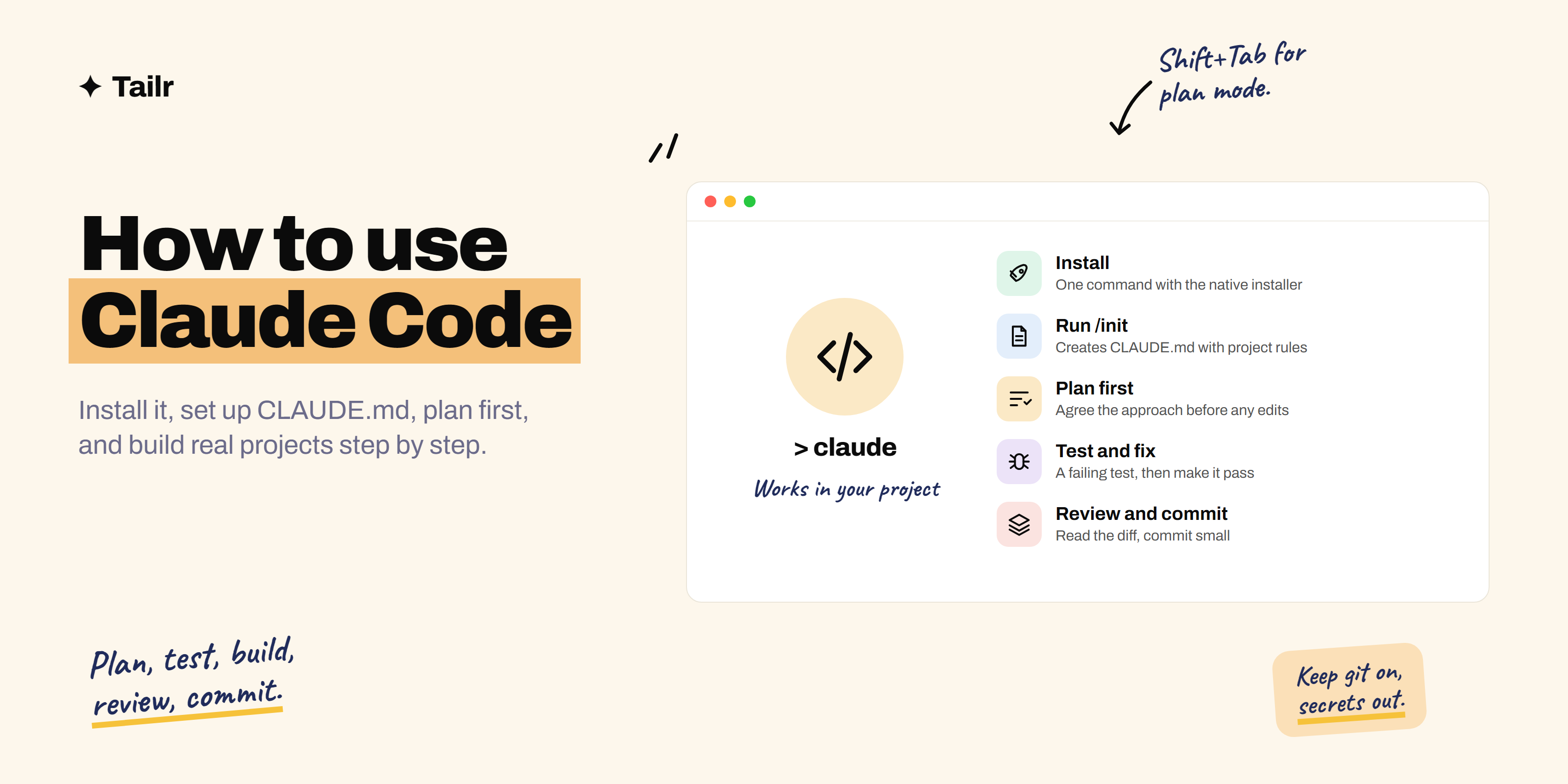
Claude Code is what happens when an AI model stops being a chat window and starts working in your project: reading files, editing code, running tests, and committing to git, while you describe what you want in plain English. It’s one of the fastest ways to build real software in 2026, whether you’re a developer or someone shipping a first portfolio project. This guide takes you from installation to a solid everyday workflow.
The short answer: Claude Code is Anthropic’s coding agent. To use it:
- Get a paid Claude plan (Pro, Max, Team or Enterprise) or an Anthropic Console API account.
- Install it with the native installer:
curl -fsSL https://claude.ai/install.sh | bashon macOS/Linux,irm https://claude.ai/install.ps1 | iexon Windows. - Open a terminal in your project folder and type
claude. - Run
/initto create aCLAUDE.mdfile with project instructions. - Describe a task, ask it to plan first (press Shift+Tab for plan mode), approve the plan, and let it build and test in small steps.
- Review every change and commit.
It also runs in VS Code, JetBrains IDEs, a desktop app and the browser.
What Claude Code is (and isn’t)
Claude Code is an agent: give it a goal and it decides which files to read, what to change, which commands to run, and how to check its work, in a loop until the task is done. (New to the idea? See what is an AI agent.)
What it can do:
- Read and understand a whole codebase, then answer questions about it.
- Build features across many files, write tests and run them.
- Fix bugs by reproducing them, reading logs and iterating until tests pass.
- Use git: create branches, write commit messages, open pull requests with the GitHub CLI.
- Run any terminal command you allow: installs, builds, linters, database migrations.
- Connect to other tools (GitHub, databases, docs, design files) through MCP servers.
What it isn’t: a replacement for your judgment. It can write confident code that’s subtly wrong, so you review, test and own what ships.
What you need
- A plan: Claude Code isn’t on the free Claude.ai plan. Pro, Max, Team and Enterprise plans include it, or you can pay per use through an Anthropic Console (API) account.
- A computer running macOS, Linux, or Windows (natively or via WSL).
- A project folder, ideally with git set up so you can undo anything.
Step 1: install Claude Code
The native installer needs no Node.js and updates itself.
# macOS, Linux, WSL
curl -fsSL https://claude.ai/install.sh | bash
# Windows PowerShell
irm https://claude.ai/install.ps1 | iexPrefer not to use a terminal? Install the desktop app (macOS and Windows) or the VS Code extension, or use it in the browser at claude.ai/code. It’s the same agent in each.
Step 2: start your first session
cd path/to/your-project
claude
Sign in when prompted. Then start with questions before changes, which is the best way to learn a codebase (including your own):
What does this project do? Walk me through the folder structure
and how a request flows from the UI to the database.
Step 3: create CLAUDE.md with /init
Type /init. Claude Code scans the project and writes a CLAUDE.md file: how to install, run and test, the main folders, conventions it noticed. It reads this file at the start of every session, so it’s how you give it lasting instructions.
A good CLAUDE.md is short and specific:
## Commands
- Dev server: npm run dev
- Tests: npm test (run before every commit)

## Rules
- TypeScript strict mode; no `any`.
- Use the existing Button component; don't add new UI libraries.
- Never commit .env files.
Whenever you correct it for the same thing twice, add a line here.
Step 4: plan first, then build
For anything bigger than a one-line fix, ask for a plan before code. Press Shift+Tab to cycle permission modes until you reach plan mode: Claude Code reads and thinks but doesn’t change anything, then proposes a plan.
I want to add a "export to CSV" button on the applications page.
Read the relevant files and propose a plan. Don't change anything yet.
Read the plan, push back (“don’t add a new library, use the built-in approach”), and approve it. Then let it build, one step at a time.
Step 5: review, test and commit
- Review the diffs it shows before accepting edits (or review in your editor or with
git diff). - Run the app yourself and click through the change.
- Ask it to run the tests and fix anything that fails.
- Commit small: “Commit this with a clear message.” Small commits are easy to undo.
The commands and shortcuts you’ll use most
| Command or key | What it does |
|---|---|
claude |
Start a session in the current folder |
claude --continue |
Pick up your most recent conversation |
/init |
Generate CLAUDE.md for the project |
/clear |
Start fresh (use between unrelated tasks) |
/compact |
Summarise the conversation to free up context |
/model |
Switch model |
/help |
List commands |
| Shift+Tab | Cycle permission modes, including plan mode and auto-accept edits |
| Esc | Stop Claude mid-task so you can redirect it |
@filename |
Point it at a specific file |
!command |
Run a shell command yourself without leaving the session |
Commands evolve, so /help inside Claude Code is the source of truth.
How to write good prompts for Claude Code
Be specific about the outcome and the constraints:
- Weak: “Make the login better.”
- Strong: “On the login page, show an inline error under the password field when the API returns 401, instead of the generic toast. Keep the existing form component. Add a test for the 401 case.”
Point it to the right place: “The bug is somewhere in @src/lib/dates.ts; users in UTC+5:30 see yesterday’s date.”
Give it a way to check itself: “Write a failing test that reproduces the bug first, then fix it until the test passes.” Tests are what make agents reliable.
Show, don’t describe: paste an error in full, drag in a screenshot of the broken UI, or point to an existing file as the style to follow.
Ask it to explain: “Explain what you changed and why, as if I’ll be asked about it in an interview.” This is how you learn while you build.
A practical workflow for a real project
- Explore: “Read the code related to X and explain how it works.”
- Plan: plan mode, agree on the approach.
- Test first: a failing test for the new behaviour or the bug.
- Build: implement until the tests pass.
- Review: read the diff, run the app, ask “what edge cases did we miss?”
- Commit and PR: “Commit, push to a new branch and open a pull request with a summary.”
- Clear:
/clearbefore the next unrelated task so old context doesn’t confuse it.
Going further
- Custom commands and skills: save repeated prompts (like “write release notes”) as reusable commands or skills in your project’s
.claudefolder. - MCP servers: connect Claude Code to GitHub, databases, docs or design tools with
claude mcp add. - Hooks: run your own scripts automatically, such as a formatter after every edit.
- Subagents: let it split large tasks, like reviewing code while another part writes tests.
- Headless mode:
claude -p "your prompt"runs a single task non-interactively, handy in scripts and CI. - Deploying what you build: ask it to set up deployment, then follow how to deploy a website on GitHub Pages or how to deploy on Vercel.
Safety habits
- Use git so every change can be undone.
- Read what it’s about to run, especially commands that delete, install or deploy.
- Keep secrets out: store API keys in environment variables, never in code or prompts, and add
.envto.gitignore. - Be careful with auto-accept modes on anything you can’t easily undo.
- Be wary of untrusted content: code, issues or web pages it reads can contain instructions meant to mislead it.
Claude Code vs other AI coding tools
| Tool | Where it runs | Best for |
|---|---|---|
| Claude Code | Terminal, IDE, desktop app, browser | Multi-file changes, agentic work across a real codebase |
| Cursor, Windsurf | AI-native editors (VS Code forks) | Developers who want AI built into the editor |
| GitHub Copilot | VS Code, JetBrains, GitHub | Autocomplete plus chat and a cloud coding agent |
| Lovable, Bolt, v0 | Browser | Beginners building web apps without setup |
For more detail, see best AI coding tools for developers and how to get started with vibe coding.
Use Claude Code to build your portfolio
Claude Code is ideal for turning a weekend into a deployed, well-tested project. Pick a brief from weekend projects to build with Claude to get hired, build it with the workflow above, and add it to your portfolio.
Then make sure your resume tells the right story for each application. Tailr is a Chrome extension that tailors your resume to the job listing you’re viewing, using only your real experience and projects, drafts a cover letter, and tracks the application.
Try TailrConclusion
Claude Code turns plain-English instructions into real changes in your codebase. Install it, open your project, run /init, and get into the habit of plan, test, build, review, commit. Keep tasks small, give it a way to check its work, keep secrets out and git on, and ask it to explain what it did. You’ll ship faster, and you’ll learn the code as you go.
Frequently asked questions
01What is Claude Code?
Claude Code is Anthropic's coding agent. It works in your terminal, IDE, desktop app or browser, reads your whole project, edits files, runs commands and tests, and uses git, all from instructions written in plain English. Unlike a chat window, it acts directly on your code, asking permission before changes unless you allow them.
02Is Claude Code free?
No. Claude Code isn't included in the free Claude.ai plan. It's available with the paid Pro, Max, Team and Enterprise plans, or with pay-as-you-go API usage through an Anthropic Console account. Pro is the usual starting point for individuals; Max plans give much higher usage for heavy daily use.
03How do I install Claude Code?
Use the native installer. On macOS, Linux or WSL run curl -fsSL https://claude.ai/install.sh | bash, and on Windows PowerShell run irm https://claude.ai/install.ps1 | iex. Then open a terminal in your project folder, type claude, and sign in. There's also a desktop app and a VS Code extension if you'd rather not use the terminal.
04Do I need to know how to code to use Claude Code?
Not to start, but it helps a lot. Beginners can build working projects by describing what they want, but you'll get better, safer results if you can read what it changes, understand the commands it runs and review its work. Use it as a way to learn: ask it to explain every change.
05What is CLAUDE.md?
CLAUDE.md is a markdown file in your project that Claude Code reads at the start of every session. It holds project instructions: how to run and test the project, code style, architecture notes and rules to follow. Run /init to generate a first version, then keep it short and update it whenever you find yourself repeating an instruction.
06What's the difference between Claude Code and Claude.ai?
Claude.ai is a chat app: you paste code in and copy answers out, and it can build previews as Artifacts. Claude Code works inside your actual project: it reads every file it needs, makes edits across many files, runs your tests and commands, and commits with git. Use Claude.ai for questions and quick prototypes, and Claude Code for building and changing real codebases.